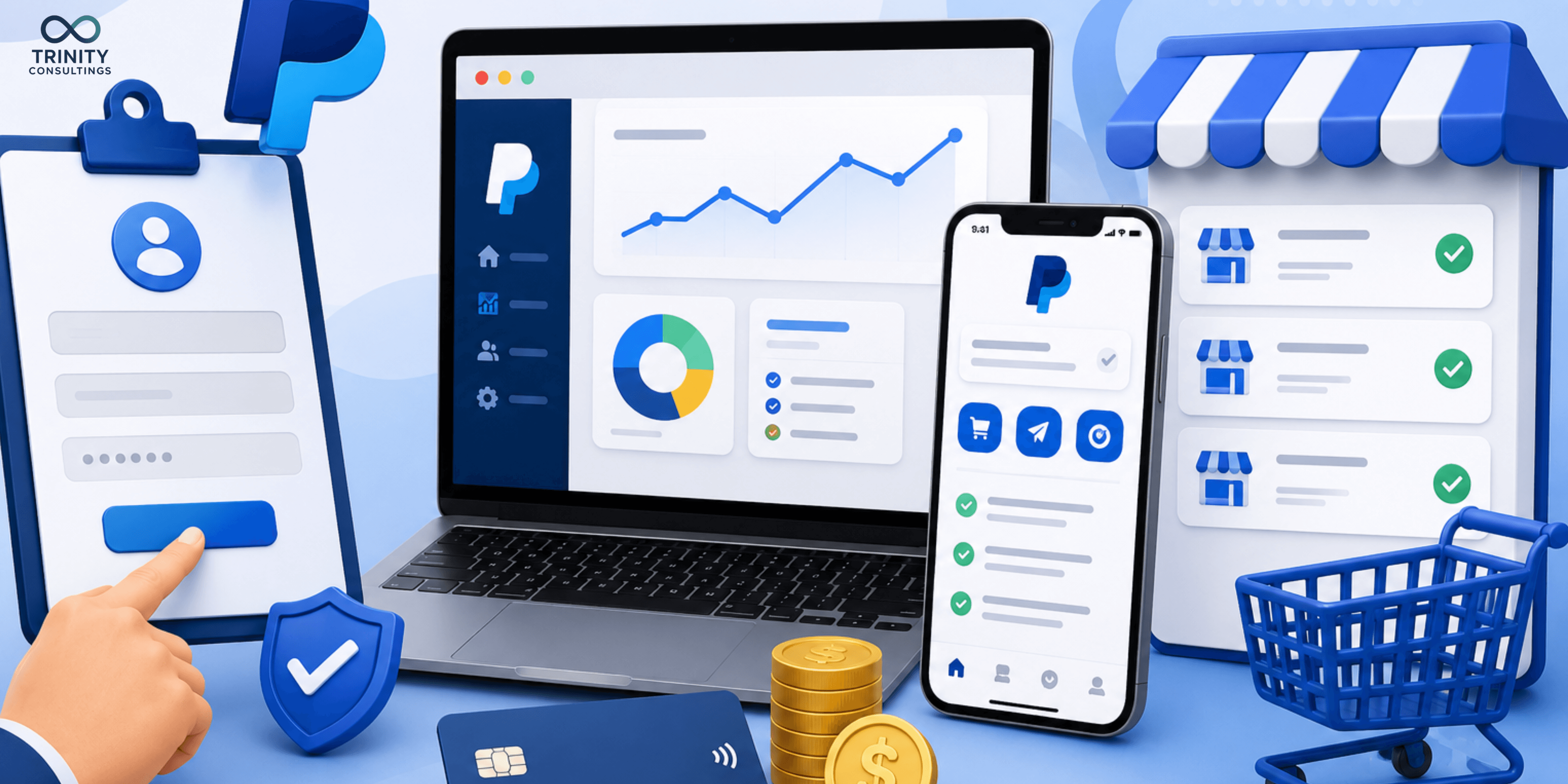
PayPal Merchant Account Sign Up: Business App, Merchant List & Dashboard Guide for Businesses
Running an online business comes with a lot of challenges, especially when it comes to managing payments. A reliable payment solution can make a huge difference in how smoothly your business operates. That’s where a PayPal merchant account comes in. In this guide, we’ll walk you through everything you need to know about signing up, using the PayPal Business app, managing your merchant list, and navigating the dashboard. This guide is written in simple language, focusing on solving real problems and making things easy for business owners.
What Is a PayPal Merchant Account?
A PayPal merchant account is a special type of PayPal account designed for businesses. Unlike a personal PayPal account, a merchant account allows you to:
Accept payments online from customers around the world.
Send invoices and manage business transactions.
Access tools like the PayPal Business app and the merchant dashboard.
Keep track of sales, refunds, and reports in one place.
Many beginners confuse it with a regular PayPal account, but the merchant version is tailored specifically for business operations. This means better tracking, secure payment processing, and features designed to help you grow.
Why You Need a PayPal Merchant Account
If you’re running an online store or offering services, a PayPal merchant account simplifies many aspects of payment management. Here’s why it’s helpful:
Secure Transactions: PayPal encrypts your payment data to protect you and your customers.
Easy Setup: You can start accepting payments in minutes.
Global Reach: Accept payments from customers in over 200 countries.
Customer Trust: Many people feel safer paying through PayPal than other payment methods.
Integration Options: Works with platforms like Shopify, Wix, and Squarespace.
By understanding these benefits, you can avoid common frustrations like payment delays, complicated invoices, or lost transaction data.
Step-by-Step Guide: Signing Up for a PayPal Merchant Account
Getting started doesn’t have to be confusing. Here’s a simple step-by-step approach:
Step 1: Visit PayPal Business Sign-Up Page
Go to the official PayPal website and select Sign Up for Business Account. Make sure you choose the correct type of account for your business.
Step 2: Provide Business Information
You’ll need to enter:
Business name
Business type (sole proprietorship, corporation, nonprofit, etc.)
Email address linked to your business
Make sure your details are accurate to avoid verification delays.
Step 3: Set Up Bank Details
Link your bank account to receive payments. This will allow PayPal to transfer money to your bank smoothly.
Step 4: Verify Your Identity
Upload any necessary documents, such as a government-issued ID or business registration certificate. This step ensures compliance and avoids account restrictions later.
Step 5: Configure Payment Settings
Choose your preferred payment options, currencies, and invoicing settings. You can also set up recurring payments if you offer subscriptions or memberships.
Step 6: Start Accepting Payments
Once your account is verified, you can start accepting payments. Share your PayPal link, integrate it with your online store, or create payment buttons for your website.
Using the PayPal Business App
The PayPal Business app is a powerful tool for managing your account on the go. Here’s what you can do:
Track Transactions: View incoming and outgoing payments in real-time.
Send Invoices: Create and send professional invoices directly from your phone.
Manage Refunds: Issue refunds quickly without logging in to a computer.
Access Reports: Check monthly sales, pending payments, and fees.
Receive Notifications: Get instant alerts for transactions.
The app is beginner-friendly and designed to help business owners save time while keeping track of their finances.
Understanding the PayPal Merchant List
The merchant list is essentially a record of all your PayPal payment links, invoices, and clients. It helps you:
Keep track of multiple clients or projects.
Quickly resend invoices.
Check payment status and follow up on pending payments.
Organize your business transactions efficiently.
For new users, the merchant list may seem overwhelming, but once you start using it regularly, it becomes one of the most valuable tools in your business toolkit.
Navigating the PayPal Business Dashboard
The PayPal business dashboard is your command center. Here’s how to make the most of it:
Key Sections of the Dashboard:
Home: Overview of recent transactions, account balance, and notifications.
Activity: Detailed list of all transactions, including sales, refunds, and disputes.
Reports: Downloadable reports for accounting, taxes, and business analysis.
Tools: Access features like payment buttons, subscription management, and invoicing.
Settings: Manage account information, security settings, and notification preferences.
Tips for Beginners:
Regularly check the dashboard to avoid missed payments.
Customize your reports to get insights that matter to your business.
Set up alerts to stay informed about large transactions or unusual activity.
Common Challenges and Troubleshooting
Even with a user-friendly system like PayPal, beginners may encounter issues. Here’s how to solve some common problems:
1. Account Verification Delays
Ensure your documents are clear and up-to-date.
Double-check your business information for accuracy.
2. Payment Holds or Restrictions
Check for any policy violations or unusual activity.
Contact PayPal support if funds are held unexpectedly.
3. Refund Confusion
Always issue refunds through the PayPal dashboard or app.
Keep records of refund confirmations for accounting purposes.
4. Integration Issues with Your Website
Use PayPal’s official plugins or integration guides.
Ensure your website platform (like Shopify or Squarespace) supports PayPal payments.
FAQs About PayPal Merchant Accounts
Q1: Is a PayPal merchant account free?
Yes, signing up is free. PayPal charges fees per transaction, but there’s no monthly cost for a standard business account.
Q2: Can I switch from a personal account to a merchant account?
Absolutely. You can upgrade your personal account to a business account from your account settings.
Q3: How long does verification take?
Usually 1–3 business days, depending on the documents submitted.
Q4: Can I use multiple currencies?
Yes, PayPal supports transactions in over 25 currencies, making international sales easier.
Q5: Is the PayPal Business app secure?
Yes, the app uses encryption and PayPal’s security measures to protect your data.
Tips to Maximize Your PayPal Merchant Account
Keep Business and Personal Accounts Separate: Avoid mixing personal transactions with business finances.
Regularly Reconcile Transactions: Check the dashboard and app to ensure all payments are accounted for.
Educate Your Team: If you have employees managing payments, provide training on the dashboard and app.
Stay Updated on Fees: PayPal’s fees can change, so check periodically.
Use Reports for Insights: Analyze trends, best-selling products, and peak payment times.
Conclusion
A PayPal merchant account is more than just a payment processor—it’s a complete tool for managing business finances, invoicing, and client transactions. From signing up to navigating the dashboard and using the PayPal Business app, it simplifies payment management and helps you focus on growing your business. By understanding how to use the merchant list, track payments, and troubleshoot common issues, you can avoid frustration and save valuable time.
For businesses looking for guidance on setting up and optimizing their PayPal merchant account, Trinity Consultings offers expert tips and practical advice to help you get started and run smoothly.
Appreciate the creator