Learn How to Save Mac Olm File to Pdf on Mac?
Summary- According to the analysis, the majority of users search for methods to save Mac OLM file to PDF file format on macOS but don't find convenient and trustworthy answers. Not to worry, your issue has a solution right here. This post will outline many techniques for saving OLM files as PDF document format. Let's start now.
Why is it Necessary to Save Mac OLM File to PDF?
In general, we transfer emails to PDF files since a PDF file can be kept in a folder with Word, Excel, and other types of documents. PDF file document is simply sharable and one can effortlessly view PDF documents no matter what kind of equipment or tool they have. Also, we can secure our PDF files by applying a password to them.
Popular Methods for Converting Outlook for Mac (.olm) to PDF on Mac OS
Users of Mac Outlook have a choice between using a manual process or expert software to solve the issue of how to save Mac OLM file to PDF on Mac. Both approaches will be thoroughly explained in this article.
Users may assure that after reading this blog, they will be able to choose wisely to save their emails in the preferred file format without facing any problems. Also, after reading this post, users can become more familiar with technology for their upcoming tasks.
Native Approach to Save OLM File as PDF Document
The manual method will be beneficial for you if you want to convert OLM files to PDF for no cost. This free solution does not require any additional software to be used. Any Mac user can easily save Mac OLM files to PDF document format with the help of built-in Mac Outlook features.
#1- Choose the email you wish to save as a PDF file in Mac Outlook 2016.

#2- To open the email in a second reading window, double-click on it.

#3- Choose "File" and then "Print" from the menu.

#4- Choose Save as PDF from the drop-down menu at the bottom left of the Print window when it appears.

#5- Enter a name in the Save As window and then click the Save tab.

#6- As a result, one can flawlessly save emails from Mac Outlook to Adobe PDF document.
How to Save Mac OLM File to PDF on Mac using Expert Software?
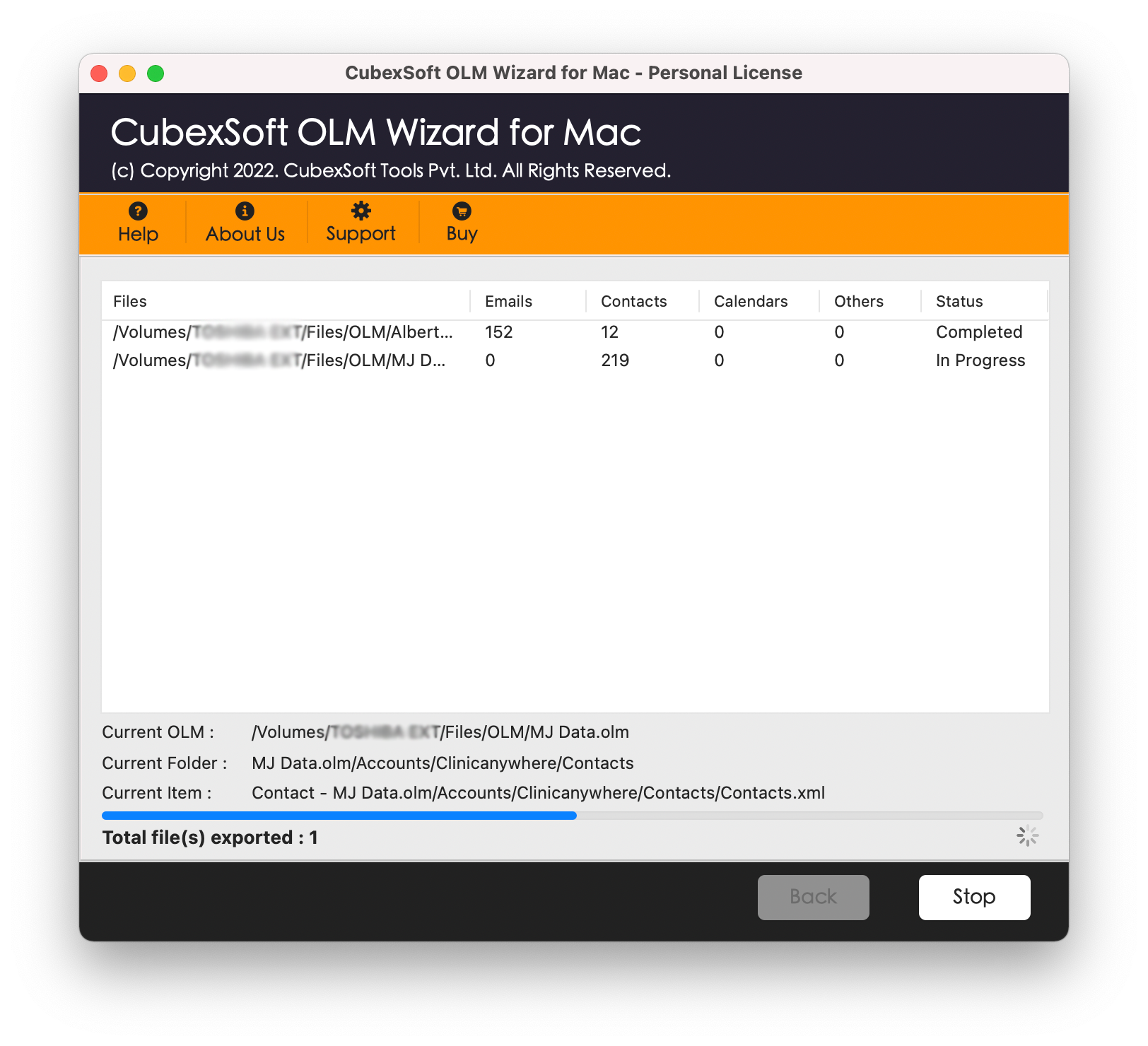
If you feel that the manual solution is time-consuming and boring, then you can select expert and automated software such as CubexSoft Mac OLM to PDF Converter. This advanced program can easily save single as well as multiple Mac Outlook data file to PDF format at once without any data loss or changes.
#1. Launch and start OLM Converter for Mac Tool on your machine.

#2. Now, choose OLM Files or Folder with the help of Add Files or Add Folder button.

#3. Then, choose PDF from the Select Saving Options list.

#4. Finally, press on the Export tab to start the final OLM to PDF conversion task.
Why the Third-Party Tool is better to Convert OLM File to PDF?
For the following reasons, Mac Outlook users select the professional tool over the free manual method.
Without Mac Outlook, the manual way cannot handle an orphan OLM file. But, Mac Outlook is not required in order to save emails from its data file.
While the manual technique only allows you to save a single OLM file at a time to PDF file, the software allows you to convert and process numerous OLM files.
The application also provides a variety of naming conventions and saving formats for emails. The manual technique does not offer this feature.
The app is compatible with every Mac OS and Win OS.
Final Lines
In this blog post, we were covering the various methods to save Mac OLM file to PDF on Mac OS. Anyone can effortlessly save OLM data in PDF format with the help of professional software. All of the approaches mentioned above are useful and simple to use.
Appreciate the creator