
How to Export Exchange 2016 Mailbox to Pst
Exchange 2016 is the latest version of the Exchange server that Microsoft offers. Exchange Server is the emailing platform that most organizations use for their business work. Nowadays, the process to export Exchange 2016 mailbox to PST format is highly recommended by users. This task is executed for various reasons that can be particular for each organization or user. If you have reached this blog, then your search is over here to find the solution to do this exporting task. Here we will discuss the reasons and solutions, so read this blog until it finishes.
Reasons why do users export Exchange 2016 mailbox to .pst?
Taking backup of the crucial data into the local drive.
Avoid future mishaps such as accidental data loss, virus attacks, etc.
Making Exchange data portable to another system.
In such a case, if you are migrating to a newer version of Exchange.
To retain the ex-employee data.
Solutions to complete Exchange 2016 mailbox exporting
Two free manual solutions can be implemented to export the Exchange mailbox to PST format. One is using the Exchange Admin Center, and the second is using the Power Shell commands. Users also can move with the professional third-party tool to perform this task. So, first, we will elaborate on the manual methods procedure and then focus on the third-party tool. Learn all the steps carefully for a better understanding of the solutions to export Exchange 2016 mailbox to PST format easily.
Export Exchange data to Outlook PST format using EAC
Step1: First, log in to the Exchange Admin Center (EAC).
Step2: Go to recipients and click the mailbox you want to export.
Step3: Now click the three dots and select the Export to a PST file option.
Step4: Choose the mailbox you want to export, such as the user or archive mailbox and Click Next.
Step5: Provide the path where you wish to store the exported file.
Step6: Enter the user email to get notifications after completing the task.
How do export Exchange mailboxes using Power Shell Commands?
Before going through the commands, we recommend users open the Exchange Management Shell and run the New-MailboxExportRequest command. After that, follow the below-mentioned commands to export Exchange 2016 mailbox to PST format.
Follow the New-MailboxExportRequest -Mailbox “mailbox name” –FilePath “\\ServerName\FolderName\nameoffile.pst” command to export the user mailbox to .pst.
Use the New-MailboxExportRequest -Mailbox “mailbox name” -FilePath “\\ServerName01\FolderName\nameoffile.pst” –IsArchive command to back up the archive mailbox.
Go through the New-MailboxExportRequest -Mailbox “name of the shared mailbox” -FilePath “\\ServerName02\Folder\nameoffile.pst” command to export the shared mailbox of Exchange.
Execute the New-MailboxExportRequest -ContentFilter {(Received -lt ’01/03/2023′)-and (Received -gt ’01/03/2022′)} -Mailbox User1 -Filepath \\ Exchange\{PST}\{file-name}.pst command to export specific mailboxes.
Drawbacks of the manual solutions
We discussed both the free manual methods to export Exchange 2016 mailbox to PST. However, these methods have some drawbacks users face while exporting Exchange mailboxes. We below listed some common drawbacks of the manual methods.
Only technical users can handle the manual procedure.
No option is available to export the selective items.
It takes maximum time to export Exchange mailbox to PST format.
Running various commands might be a hectic task for the users.
A wrongly executed command can be risky for your data.
This is risky to rely on solutions that have so many drawbacks. Therefore, users can opt for the Shoviv Exchange Recovery Tool to eliminate the manual method difficulties. Now we are going to elaborate on the Shoviv professional software to complete the Exchange mailbox exporting process in a secure way.
Secure way to export Microsoft Exchange mailboxes
Shoviv Exchange Recovery Tool (aka Exchange Server Recovery Manager) introduces many facilities to give trouble-free results. To provide an easy solution to Exchange users, Shoviv is developed highly advanced software. Moreover, the processing speed of the Shoviv software is very fast, and can export multiple Exchange mailboxes in a single click. Furthermore, this software processes the Exchange data without damaging any data. With exporting, the tool is also an expert in recovering corrupted or damaged Exchange EDB files. Read the below-described features for a better understanding of this automation.
This software export Exchange 2016 mailbox to PST format without altering the folder hierarchy and data integrity.
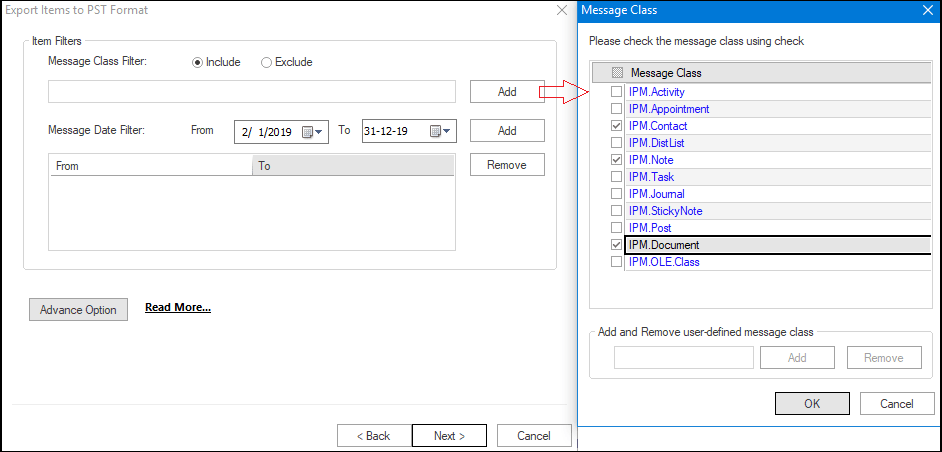
It has a filter option to export particular items by selecting them using the date or folder-wise criteria.
The data remain as it is even after recovering the EDB files of the Exchange Server.
Moreover, users can include bulk and large EDB files at a time without size limitations.
The speed of the process remains the same even if you process multiple Exchange mailboxes concurrently.
Furthermore, it has a user-friendly GUI making the software easy to understand for users. Anyone can export Exchange 2016 mailbox to PST format without any concern.
Along with exporting in PST, it also allows saving the Exchange mailboxes in EML, MSG, vCal, RTF, and other file formats.
In addition, users can set the size of the resultant PST file. This splitter option helps users to eliminate significant PST file issues. Users can use this option to set the size for the resultant PST file of their choice.
It also offers options to export the Exchange mailboxes into the Microsoft 365 and Live Exchange Server.
Moreover, this tool does export Exchange 2016 mailbox to PST format with 100% accuracy.
The incremental export option resumes the process if it gets paused. Plus, it also prevents the data from duplicating items and maintains its originality.
Users can also move to its free demo version to know more about its facilities. Its free demo version is available on Shoviv’s official website. This free demo version can process the first 50 items/folder freely.
Steps to move Exchange data into the PST using a third-party tool
Download and install the Shoviv Exchange Recovery Tool (aka Exchange Recovery Manager).exe from Shoviv website. After that, follow the below steps to perform this exporting task efficiently.
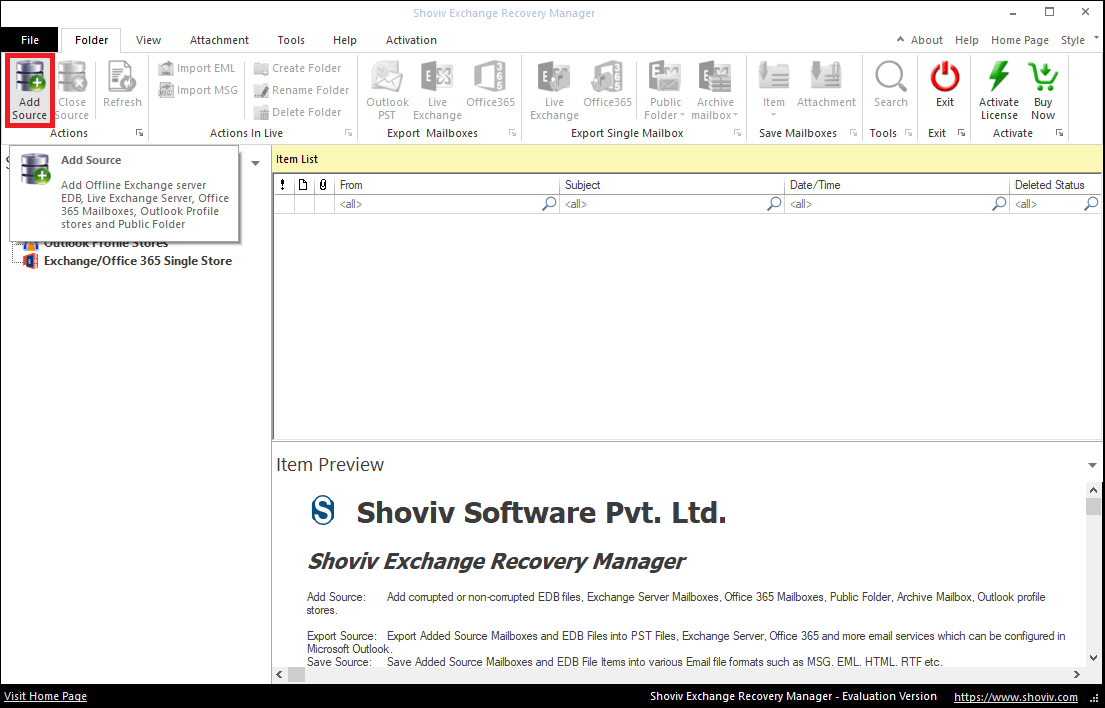
Step1: Click on Add Source after installing the EXE file.
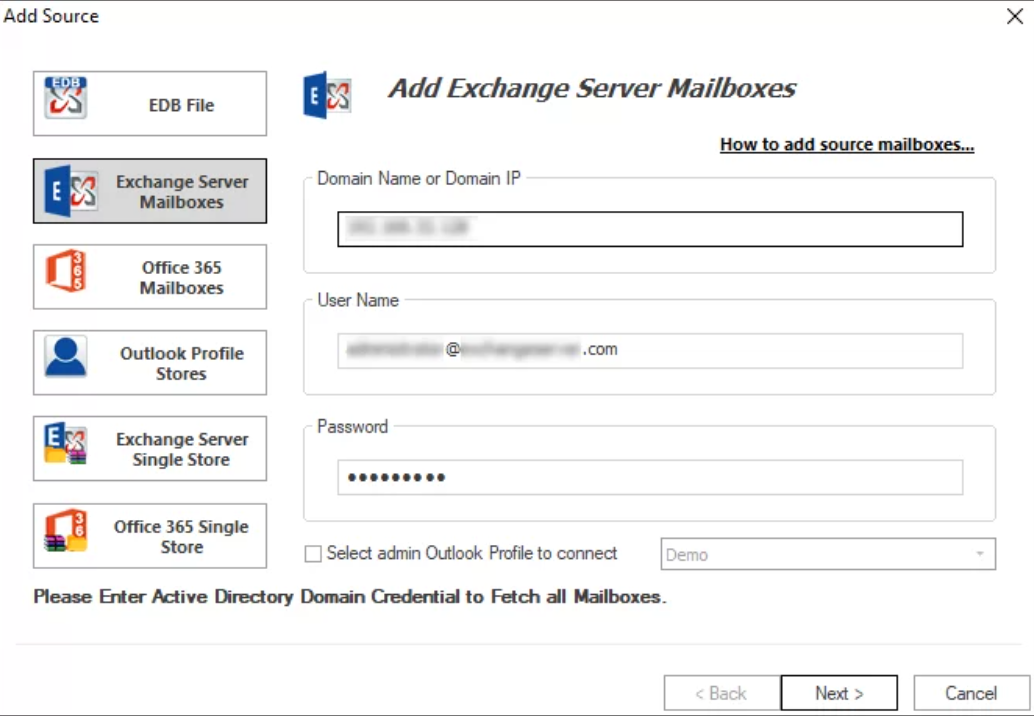
Step2: Go to the Exchange Server mailboxes option and click Next after entering all required details to connect with Exchange Server.
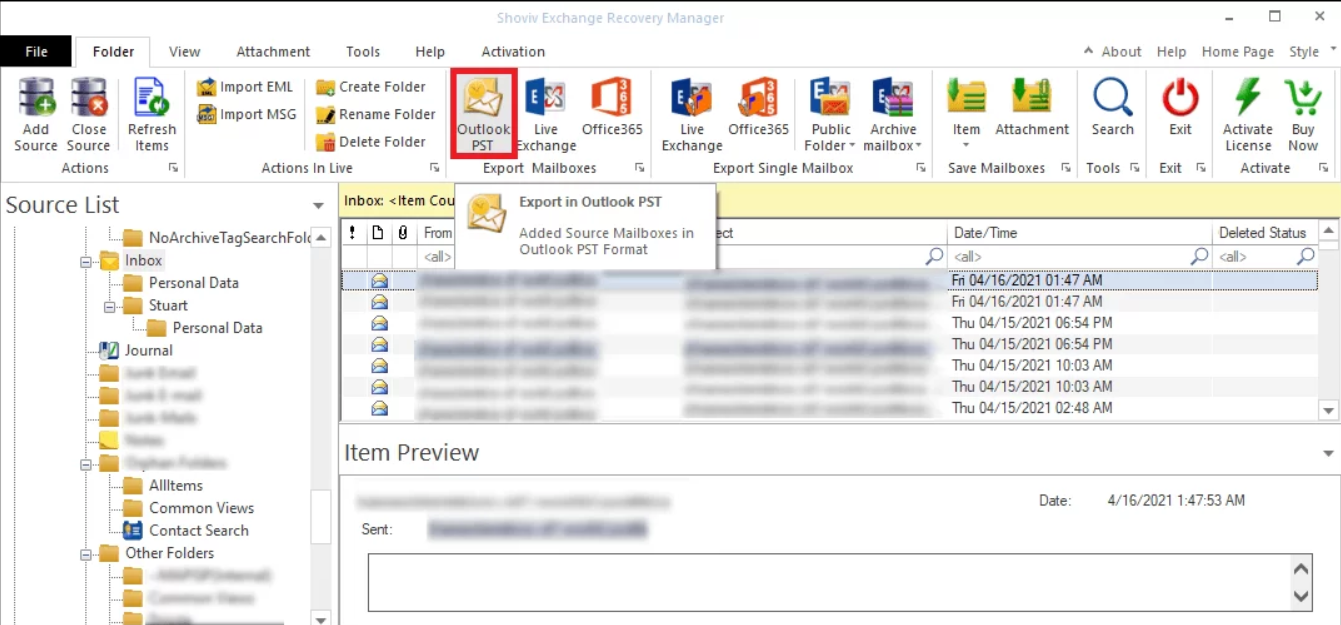
Step3: Choose the Outlook PST option from the ribbon bar.
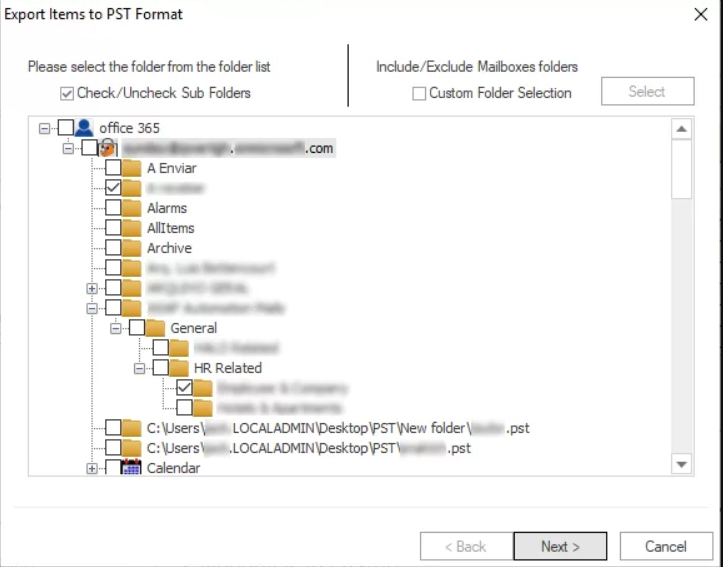
Step4: Check/uncheck the subfolders to include/exclude and Click Next.
Step5:
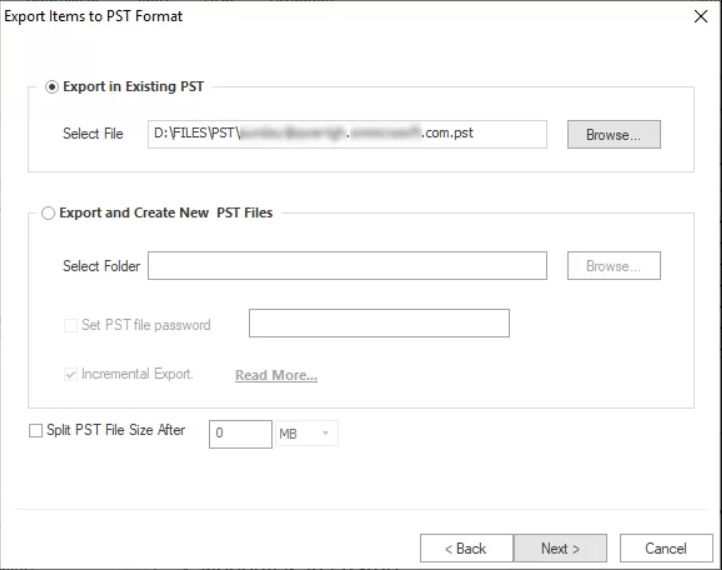
Select the option to export Exchange mailboxes into the existing or new PST.
Check the incremental export option to prevent duplicity in the target.
Set the size for the resultant PST file to avoid an oversized PST file
Click on Next after providing the path to export.
Step6: Now filter items per your requirements and tap the Next button.
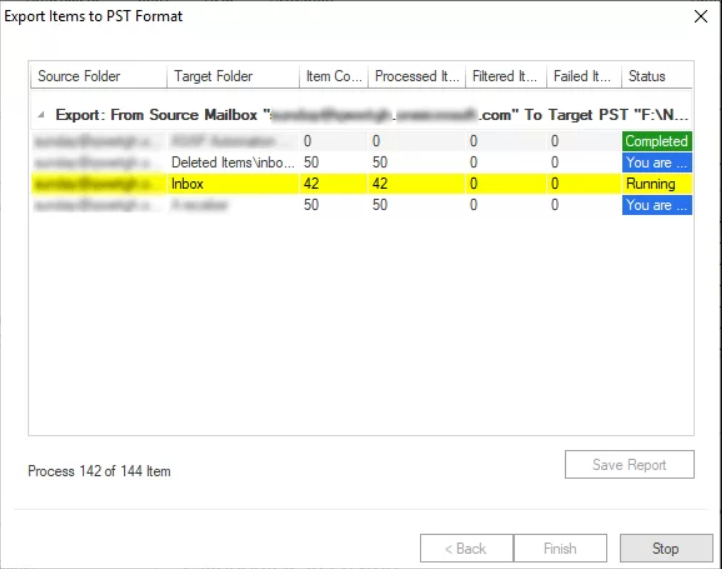
Step7: Save the process report after completing the task if needed and click Finish.
Final Words
This blog taught us how to execute manual and professional methods to export Exchange 2016 mailbox to PST format. So, we suggest users choose Shoviv professional software for this task. However, manual methods are a bit complicated to execute. Most importantly, power shell commands are hectic to implement for the users. Therefore, Shoviv third-party tool is the easiest and most secure way to perform this task. Even it processes the Exchange mailboxes without any limitations. Take a trial of its free demo version to learn more about its compatibility and processing.
Appreciate the creator