How to Convert Word Documents to Video with AI - Free Guide
Word documents are still one of the most common formats for sharing knowledge.
Teachers use them for lesson notes.
HR teams use them for onboarding material.
Training teams use them for SOPs and internal manuals.
Businesses use them for product documentation, process guides, proposals, and policy documents.
But there is one problem: people do not always read long documents carefully.
This is especially true when the content is used for training, education, or internal communication. A well-written document may contain all the information, but it may not be the easiest format for learners, employees, or customers to understand quickly.
This is where AI-powered document-to-video workflows can help.
In this guide, we will look at how to convert Word documents into videos using AI, what the process looks like, and what to check before publishing the final video.
Why Convert Word Documents into Videos?
A Word document is useful for detailed information.
A video is useful for guided explanation.
When you convert a Word document into a video, you can add:
Voiceover
Subtitles
Scene-by-scene explanation
Visual highlights
AI avatars
Background visuals
Step-by-step narration
This makes the same information easier to watch, understand, and remember.
For Indian educators, trainers, small businesses, creators, and HR teams, this can be useful in many situations:
Turning class notes into short learning videos
Converting training manuals into onboarding videos
Making SOPs easier for employees to follow
Creating explainer videos from written guides
Turning product documentation into customer education videos
Creating multilingual training content
Repurposing existing content without starting from zero
The main benefit is simple: you can reuse existing documents and turn them into more engaging content.
What Kind of Word Documents Can Be Converted?
Not every document is ready to become a video immediately.
But many types of Word documents can be adapted into video format.
Examples include:
Lesson notes
Training manuals
Employee handbooks
SOPs
Product guides
Policy documents
Process documents
Workshop material
Coaching scripts
Internal knowledge base articles
Course modules
The best documents for video conversion usually have a clear structure.
For example:
A clear title
Section headings
Step-by-step instructions
Bullet points
Examples
Summary points
If a document is too long or too dense, it should be divided into smaller video topics first.
Basic Workflow: DOCX to Video with AI
The basic workflow looks like this:
Word document
  -> Text extraction
  -> Content cleaning
  -> Script generation
  -> Scene planning
  -> Voiceover generation
  -> Subtitle generation
  -> Visual layout
  -> Human review
  -> Video export
The goal is not to simply read the document aloud.
The goal is to transform written content into a video lesson or explanation that is easier to follow.
Step 1: Prepare the Word Document
Before using AI, clean the document first.
A messy document will usually create a messy video.
If the source content is clear, the generated video will also be easier to improve.
Check the following:
Remove outdated information
Delete duplicate paragraphs
Split long sections into smaller parts
Add clear headings
Keep one topic per section
Remove confidential or private information
Add examples where needed
Make sure the document has a logical order
For example, if you have a 20-page employee handbook, do not convert the entire document into one long video.
Instead, divide it into smaller videos:
Company overview
Attendance policy
Leave policy
Security rules
Expense process
Tool setup guide
Shorter videos are easier to watch, update, and reuse.
Step 2: Turn Written Text into a Video Script
Word documents are written for reading.
Videos are written for listening.
That means the text needs to be rewritten into natural spoken language.
Example:
Original document text:
The following procedure must be followed for submitting reimbursement requests.

Video script:
In this video, we will explain how to submit reimbursement requests correctly and avoid common mistakes.
This kind of rewrite makes the content more conversational and easier to understand.
A good video script should:
Use simple language
Explain one idea at a time
Avoid very long sentences
Add context where needed
Use examples
Keep the viewer's attention
Match the learning goal
AI can help generate the first version of the script, but a human should still review it.
Step 3: Break the Script into Scenes
A video should not be one long block of narration.
It should be divided into short scenes.
Each scene should have one clear purpose:
Scene Type
Purpose
Introduction
Explain what the video is about
Problem
Show why the topic matters
Main concept
Explain the core idea
Steps
Show the process one step at a time
Example
Make the explanation practical
Summary
Repeat the key takeaway
For example, a video about a classroom assignment process could be divided like this:
Scene 1: What this video explains
Scene 2: Why the assignment format matters
Scene 3: How to prepare the document
Scene 4: How to submit it
Scene 5: Common mistakes
Scene 6: Final checklist
This structure makes the video easier to follow.
Step 4: Add Voiceover
Voiceover is one of the most important parts of a training or educational video.
AI voiceover can help when you do not want to record manually.
It can also make it easier to create multiple versions of the same content.
When using AI voiceover, check:
Is the pronunciation correct?
Is the speaking speed comfortable?
Are names and technical terms clear?
Does the tone match the topic?
Is the voice suitable for the audience?
For Indian audiences, language and accent may also matter.
If the content is for students, employees, or customers in India, you may need English, Hindi, or other regional language versions depending on the audience.
Step 5: Add Subtitles
Subtitles are not optional anymore.
Many people watch videos without sound, especially on mobile devices.
Subtitles also help learners understand and remember the content better.
Good subtitles should be:
Short
Clear
Easy to read on mobile
Matched with the voiceover
Free from spelling mistakes
Properly timed
Subtitles are also useful if you want to translate the video later.
Step 6: Use Visuals and AI Avatars Carefully
AI avatars can make videos feel more personal, but they are not always necessary.
Use an avatar when:
You want a teacher-like or trainer-like presence
The video is for onboarding
The content needs a human explanation style
You want consistency across many training videos
The audience benefits from a presenter
Do not use an avatar just for decoration.
For some documents, a simple layout with text highlights, diagrams, and subtitles may work better.
Useful visual elements include:
Key points
Icons
Process diagrams
Step numbers
Screenshots
Simple charts
Highlighted text
The best design is the one that helps the viewer understand faster.
Step 7: Review the Final Video
AI can speed up the process, but the final video should still be reviewed by a person.
Before publishing, check:
Does the video match the original document?
Is any meaning changed?
Are all facts correct?
Are names, numbers, and dates accurate?
Is confidential information removed?
Are subtitles correct?
Is the video too long?
Does the voiceover sound natural?
Is the content useful for the target audience?
This review step is very important for education, HR, compliance, and business communication.
Common Mistakes to Avoid
Converting a Long Document into One Long Video
This is one of the most common mistakes.
A 20-page document should usually become multiple short videos, not one long video.
Reading the Document Word for Word
A video should explain the document, not simply read it.
Rewrite the content into a natural script.
Adding Too Much Text on Screen
If the viewer has to read a lot of text while listening to narration, the video becomes difficult to follow.
Keep screen text short.
Skipping Human Review
AI-generated scripts can contain errors, unclear wording, or missing context.
Always review before publishing.
Ignoring Mobile Viewers
Many users will watch videos on mobile devices.
Make sure text, subtitles, and visuals are readable on a small screen.
Where This Workflow Is Useful
Converting Word documents into videos can be useful for:
Schools and colleges
Coaching institutes
Corporate training teams
HR departments
EdTech creators
Small businesses
Customer support teams
Product education teams
Freelance educators
Online course creators
In India, where online learning, remote work, and mobile-first content consumption are growing, this workflow can help make written knowledge more accessible.
Choosing an AI DOCX to Video Tool
When choosing a tool, do not only look at whether it can generate a video quickly.
Check whether it supports the full workflow:
DOCX upload
Text extraction
Script editing
Scene generation
AI voiceover
Subtitles
Visual layout
Avatar option
Human review
Export options
Multilingual support
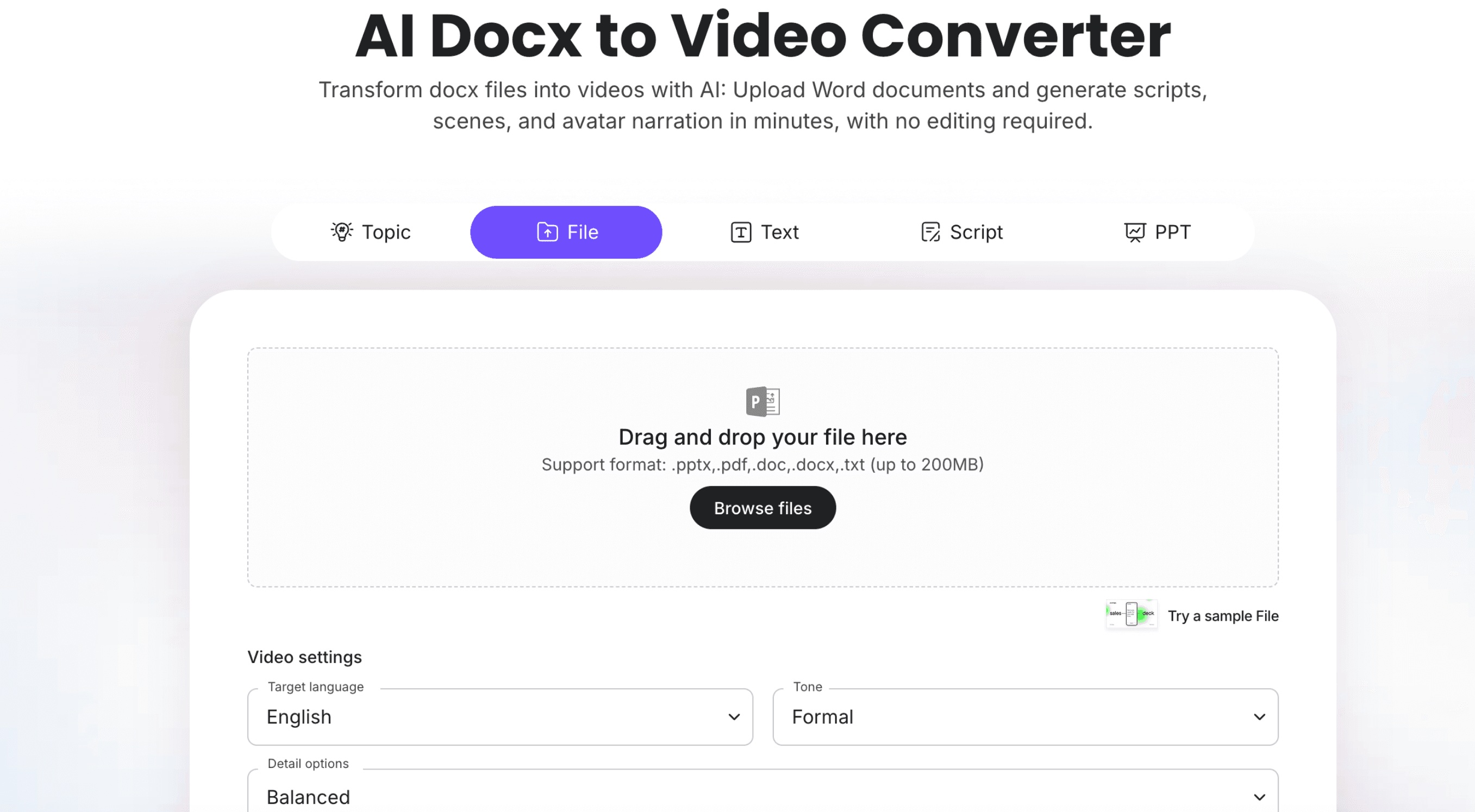
If you want to explore this type of workflow, a tool like AI DOCX to Video Converter can help you understand how Word documents can be turned into structured video content with AI.
The important point is not just automation.
The real goal is to make existing knowledge easier to understand, reuse, and share.
Final Thoughts
Word documents are valuable, but they are not always the best format for learning or communication.
AI can help turn those documents into videos with narration, subtitles, scenes, visuals, and avatars.
A practical workflow looks like this:
Clean the Word document
Convert it into a spoken script
Break the script into scenes
Add AI voiceover
Add subtitles
Add useful visuals
Review the final video
Export and share
For educators, trainers, HR teams, and businesses, this is a practical way to reuse existing content.
Instead of creating every video from scratch, you can start with the documents you already have and turn them into more engaging video content.
Appreciate the creator