How Do I Convert Vcf to Csv on Windows - Know Here?
This article will explain how to convert VCF to CSV on Windows. Here, we'll give consumers expert advice and instructions on how to export VCF contacts in CSV format on Windows. Tell us why this conversion occurred before we go on to the solution.
We are all aware that vCard is a popular file format for storing contact information across a range of hardware and software. A vCard file is a common file format for keeping track of contacts for personal or business use. Your name, phone number, email address, home address, and other contact details are typically included in this. Additionally, CSV files (comma-separated values) exhibit data often on a database page or table and are in text format. Data scientists primarily employ the CSV file format for visualization.
Why You Should Convert VCF to CSV on Windows
In this part, we'll examine some of the major CSV file conversion elements that influence how Windows OS converts VCF files to CSV.
· All contacts must always be stored as backups, and they must be kept in a manner that allows for easy access and unrestricted transfer.
· Because CSV files are text files, any text editor may be used to modify them.
· Its files are superior for managing big volumes of data and are simple to maintain.
Technique to Convert VCF vCard Contacts to CSV Format on Windows
There are two ways to convert a VCF contacts file to a CSV file on Windows.
· Manual Approach
· Automated Approach
Guide Approach to Convert VCF to CSV on Windows with Google Contacts
· Initially, launch your browser and navigate to https://contacts.google.com/.
· Utilize your Gmail account to access Google Contacts.
· Click Import in the left pane.
· Select the VCF file by clicking Select File, then click Open.
· Locate the imported contact in the Label section (labeled with the import date).
Click Export in the left pane.
· From the drop-down list, choose the imported contact.
· As for the destination format, either Outlook CSV or Google CSV. Press Export.
One VCF file can only be processed at a time using this approach. You can't pick more than one VCF file. Repeat the previous steps for each additional VCF that has to be converted, if there are more than two.
It's also important to remember that the vCard file size must be under 20 MB. The file cannot be converted to CSV format in any other case.
Reason for Failure of Manual Technique
· Lengthy and challenging manual process Novice users are unable to comprehend the procedure. They require technological support.
· With manual solutions, there is a possibility of data loss.
· Results that are trustworthy and accurate cannot be guaranteed.
Technical Solution to Convert VCF to CSV on Windows
Given that manual methods are challenging to implement, an automatic solution is necessary. You may convert a VCF file to CSV format with ease by using the VCF to CSV Converter Tool. The number of formats to which VCF contact files can be converted with this application is unlimited. The newest Windows OS versions are all compatible with this software. When converting VCF files, this utility doesn't need any assistance from other sources. Without any issues, even a rookie computer expert can utilize the software.
For a better experience, you may also download the TRIAL Edition tool. Its user interface is straightforward and uncomplicated. The licensed version of the utility is then available to buy from the official website.
Easy Steps on how to convert VCF to CSV on windows
· Install and run the VCF to CSV Converter application on your system.
· Select the browse button, and add the VCF file.
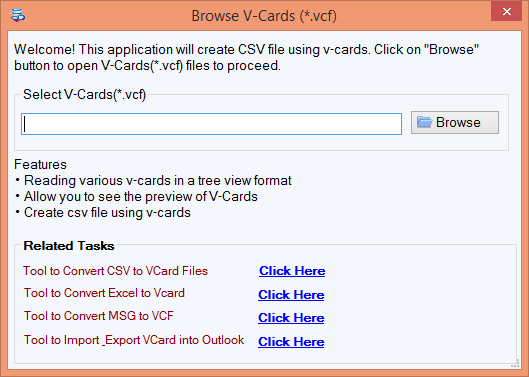
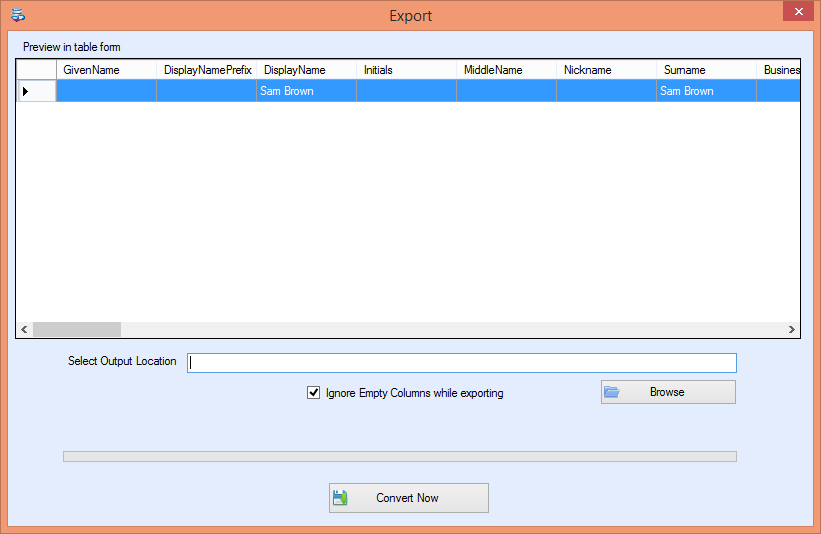
· Next, the preview is shown as given below; select the mapping column desired.

· Then, choose the output location to save the CSV file on your system.
· Finally, hit the "Convert Now" button to begin the procedure.
Advanced Features of VCF to CSV Converter Tool
· Quick and precise conversion outcomes
· Maintains all contact details during conversion
· Name, email, phone, address, and all other information for vCard contacts may be exported.
· Make a conversion offer for several emails and contacts.
· Maintain the main components and mailbox structures.
· Possibility of a free trial before purchasing software
· Independently and without interruption.
· When converting a VCF file to a CSV file that contains all the data, there is no size restriction.
· For new users, the conversion procedure is straightforward and simple to grasp.
· Convert contacts to vCard v2.1, v3.0, or v4.0 formats.
Conclusion
This article's manual and automated methods for converting VCF to CSV on windows are effective. You can select a solution based on which one is most convenient for you. However, we always advise using software solutions that don't need more work and don't put your data in danger. By using the app, you may judge it for yourself.
Appreciate the creator