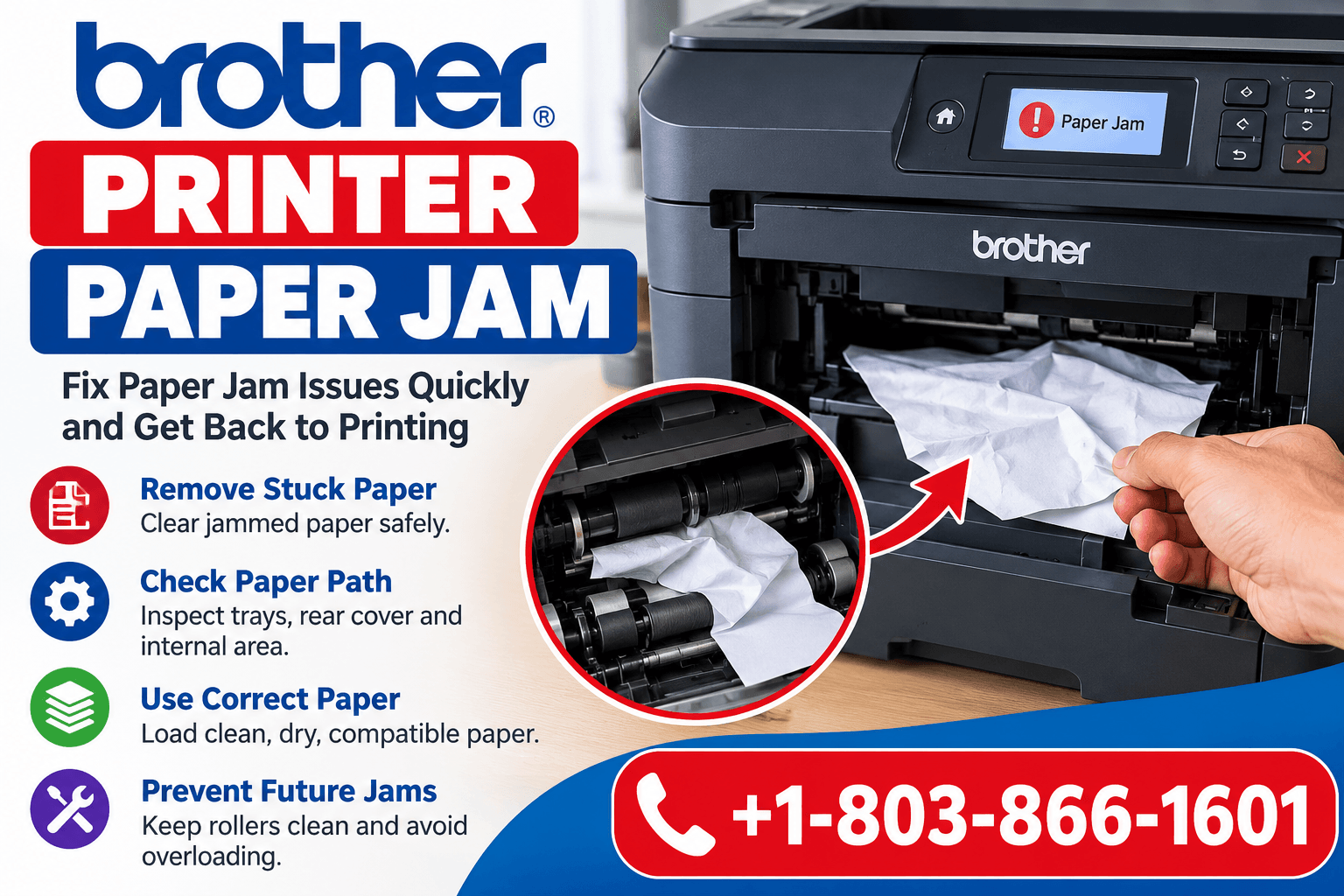
Brother Printer Paper Jam? Update Guide (2026)
A Brother Printer Paper Jam is a common printing problem that can interrupt important tasks at home or in the office. Paper may become stuck inside the printer, near the paper tray, around the rollers, or in the rear cover. Sometimes, the printer displays a paper jam error even when no paper is visible.
If your Brother printer keeps jamming paper, the problem may be caused by incorrectly loaded sheets, damaged rollers, unsuitable paper, or small pieces of paper left inside the machine.
This guide explains why Brother printer paper jams occur, how to remove stuck paper safely, and what you can do to prevent future problems.
Why Does My Brother Printer Keep Jamming Paper?
Several factors can cause repeated paper jams.
Overloaded paper tray: Too many sheets can prevent proper feeding.
Incorrect paper alignment: Misaligned paper may become stuck.
Dirty paper rollers: Dust and debris can affect paper movement.
Damaged paper: Folded, curled, or torn sheets can cause jams.
Incorrect paper size: Printer settings may not match the loaded paper.
Foreign objects: Small pieces of paper or debris may block the paper path.
Worn components: Damaged rollers or internal parts may cause repeated jams.
Identifying the cause can help you resolve the issue more effectively.
How to Fix Brother Printer Paper Jam: Step-by-Step Solutions
1. Turn Off Your Brother Printer
Before removing jammed paper, stop the current print job and turn off the printer.
Disconnect the power cable if your model's instructions require it. For laser printers, remember that the fuser and nearby components may remain hot after printing.
Allow the printer to cool before accessing internal areas.
2. Remove Paper From the Paper Tray
Check the paper tray for stuck or incorrectly loaded sheets.
Carefully pull out the paper tray.
Remove loose or jammed paper.
Inspect the tray for torn pieces.
Straighten the remaining paper.
Adjust the paper guides.
Reinsert the tray securely.
Avoid overfilling the tray.
3. Check the Rear Cover
Paper may become stuck near the rear paper path.
Open the rear cover according to your printer's instructions and inspect the accessible area.
Gently remove visible paper in the recommended direction. Do not pull forcefully because the sheet may tear or damage internal components.
Close the rear cover securely afterward.
4. Inspect the Inside of the Printer
If the Brother printer paper jam error continues, check the accessible internal paper path.
Open the appropriate cover and look for paper fragments.
On some laser models, the toner and drum assembly may need to be removed according to the user manual.
Avoid touching sensitive internal components, including the imaging drum and hot fuser.
5. Clean the Paper Feed Rollers
Dirty rollers can cause frequent paper jams.
Use the cleaning procedure recommended for your printer model. Where permitted, gently wipe accessible feed rollers with a suitable lint-free cloth.
Allow cleaned parts to dry completely before restarting the printer.
6. Use the Correct Paper Type
Brother printers support specific paper sizes, thicknesses, and media types.
Check that your paper meets the printer's specifications. Avoid damp, curled, wrinkled, or damaged sheets.
Also ensure the selected paper size and type match the printer settings.
7. Restart the Printer
After removing jammed paper, close all covers and reinstall the paper tray.
Reconnect power if disconnected, turn on the printer, and wait for initialization.
Print a test page to confirm that the paper feeds correctly.
Brother Printer Says Paper Jam but No Paper Is Stuck
Sometimes a Brother printer displays a paper jam warning even when the paper path appears clear.
This may happen because of:
Small paper fragments hidden inside the printer.
Covers that are not completely closed.
Paper feed sensors that are blocked or malfunctioning.
Improperly installed printer components.
Inspect accessible areas carefully and follow the model-specific jam removal instructions.
If the error continues, professional servicing may be necessary.
How to Prevent Brother Printer Paper Jams
Regular maintenance can reduce paper feeding problems.
Use clean, dry, compatible paper.
Avoid overloading the paper tray.
Keep paper guides properly adjusted.
Store unused paper away from moisture.
Clean feed rollers as recommended.
Remove damaged sheets before printing.
Keep the printer on a stable, level surface.
Frequently Asked Questions
How do I clear a paper jam on my Brother printer?
Turn off the printer, follow the model-specific safety instructions, remove jammed paper from the accessible paper path, close all covers, and restart the printer.
Why does my Brother printer keep jamming?
Repeated jams may result from dirty rollers, overloaded trays, damaged paper, incorrect paper settings, or worn feeding components.
Why does my Brother printer say paper jam when there is none?
Hidden paper fragments, blocked sensors, or improperly closed covers may cause a persistent paper jam warning.
Can a paper jam damage my Brother printer?
Yes. Pulling paper forcefully or using sharp objects inside the printer can damage rollers, sensors, and other components.
Conclusion
The Brother Printer Paper Jam problem can usually be resolved by checking the paper tray, removing stuck sheets carefully, inspecting the paper path, and using compatible paper. Regular cleaning and proper paper loading can also help prevent repeated jams.
Need Additional Assistance?
If you’ve tried the troubleshooting steps above and still need help (Dial +1-803-866-1601 USA), our independent technical support team can assist with printer troubleshooting. We are not affiliated with or authorized by Brother or any other printer manufacturer.
Appreciate the creator